Most of the subject matter I write here is political in nature. On rare occasions, I feel the need to cover technology from a perspective that I do not usually hear from the main tech media outlets. I am an avid TWIT listener, so what I do hear via Tech News Today or This Week in Tech usually covers any and every possible story that would be of interest to me.
That being said, the most recent episode of TWIT discussed the recent announcements by Apple, including iLife 11, the new Macbook Air, and OS X Lion. When the discussion began revolving around Lion, my attention immediately shifted to Leo Laporte's astute observations and his understanding of the inner workings of Steve Jobs. Why? Leo knows what he's talking about. However, there was one aspect of the iOS transition I did not hear discussed. Maybe I missed it. Maybe one of the other hosts said it. The fact remains. I did not hear it.
Most of the discussion revolved around the notion that the app store transition reflects a philosophical shift with Apple, but also that the overall interface does not necessarily cater to pro users. It was said that for the casual user, the interface will likely be comfortable, but given that we are now a multitasking society, OS X Lion will most certainly have to learn to evolve.
What did they not discuss? Switchers. No, I don't mean your run of the mill switcher that Apple has been targeting for a few years with their Mac/PC ads featuring Justin Long and John Hodgman. I have a feeling Apple is targeting a whole different brand of switcher, users who have an iPhone or iPod Touch, but still manage the device using a Windows environment.
We've already got them by the balls when it comes to familiarity with the iOS interface. Make OS X something they are familiar with and they will be easily swayed into using what now feels very natural.
Now that I have that point out of the way, I'd like to address some concerns I have about the next major revision of OS X.
In my mind, this transition represents another major shift in development, the likes of which we have not seen since we went Intel. Developers at that time were slapped around a bit, being forced to rewrite all their apps to support the x86 architecture. Sure, we had Rosetta. Sure, many of those developers recall making the switch from OS 9 to OS X. Even fewer developers recall what it took to go from a 68040 platform to PowerPC. I'm showing my age here, I suppose. The fact remains. The notion of an iApp means developers will once again have to rethink their approach to Mac computing.
But that's not all they have to worry about. Apple is going to centralize the application delivery system using an app store in much the same way the iPhone and iPod Touch has access to new applications. With this sandboxed approach, Apple essentially gives themselves ultimate power with a closed system. One can only hope the app approval system is much more lax than the rigid rules used for the iOS store.
Several questions remain, but there are some worrying questions I'd like answered.
Will keyboard navigation be a thing of the past? As a long time Mac user, I am completely reliant on keyboard navigation, whether via command keys or typing the names of folders and documents as I move around in the Finder. As Leo Laporte said, this looks like the death of the Finder. Power users, like Photoshop users, are invested in keyboard shortcuts. Surely there are reasons to maintain that level of interactivity? Lion looks more mouse and gesture oriented, two areas I don't use a lot of in Snow Leopard, at least not as much as keyboard navigation, even if I'm using Spaces.
Will the app store be the only place I can get my apps? Will I be able to go to MacUpdate, a well known application repository, to get my applications?
Will developers start charging small fees for their apps? In other words, is this the end of freeware on the Mac?
I know what you're saying. Think of it this way. In the iOS app store, there is no real try before you buy business model in place. If an app costs money, you have to buy it to try it. If you don't like it, I'm sure there is a refund process, but as with anything we buy these days, getting a refund is not as simple as it used to be. In the current store, free choices certainly do exist, but look at all the other apps that cost money. Am I going to have to pay for everything now? I'm certainly not advocating being a freeloader, but Freeware is what makes using a computer enjoyable. When everything starts costing money, owning a computer becomes a major expense. When all I want to do is perform a simple task or make my interface a little different, an application is usually out there to remedy my problem for free. Consider it a friendly relationship we have with developers.
I had a similar fear when we made the Intel switch, and yes, for the most part, my suspicions were correct. The idea was to bring in more developers and in turn, more applications. The Intel switch made a Mac a more appealing platform to write for. Unfortunately, at the time of the big switch, Windows apps were notorious for being shareware-only. I was afraid the Mac world would become inundated by greedy shareware devs wanting to charge too much for an application. The trend certainly is on the rise, but with the advent of the app store, I'm afraid freeware might be on the way out.
Although jailbreaking allows piracy to continue, a centralized app store also helps combat the illegal distribution of copyrighted software. If we are required to use an app that acquires our own personalized usage signature when we download it, sharing apps between machines will become a thing of the past. No more will you be able to try out something a friend has in an attempt to decide whether or not you should buy it. No more will you be able to go to a friend's computer with a utility and fix their problem without having the proper license.
I'm scared of where Apple is taking us in terms of usage and licensing.
That also brings up the notion of "sideloading." At least I think that's the correct term. What I mean by "sideloading" is that if I buy an app on my Mac for use on my Mac, but the developer has coded it so it supports both use on an iDevice as well as my Mac, will I be allowed under the license to use it on both systems? I'd hate to have to buy the same app twice, or worse yet, three or four times. Face it. We are at a time when one user controls several devices. Licensing language should change accordingly to allow one user to spread an app across those devices. Here's a perfect example. Let's say I own a Mac Pro and I do my heavy lifting on that machine. Let's say I travel and do business on the road. I'd likely have a Macbook Pro or even a Macbook Air for doing all the light work that usually happens on the road. I'd like to be able to install the same program on both systems without worrying about licenses. It's not like I'd be using the program simultaneously on two machines. This philosophy has yet to be embraced by developers, but I'm hoping they come around instead of offering the grotesque insult that is the "family pack."
I'd like to close with one other interesting point in defense of the closed system that is the app store. It may be closed, but Apple has shown that it works. How many apps have been sold? How many iDevices are out there? People do use this interface regularly. It stands to reason that using it on a desktop will work equally as well for Apple as a company. It may not be good for the pro user, but it works for Apple.

Showing posts with label Apple. Show all posts
Showing posts with label Apple. Show all posts
Monday, October 25, 2010

Sunday, February 14, 2010
The Mac OS X Path Bar
The Path Bar is, in my eyes, a new feature in Mac OS X. What is the Path Bar? It's a hierarchal listing of folders at the bottom of a Finder window. The hierarchy tells you where you're at and lists every folder above your current location. Prior to the addition of a Path Bar, navigating via a hierarchy came by the way of the Path toolbar item or by holding the Command key while clicking on the name of the folder at the top of the window. While those last two features still exist, the Path Bar makes life a little easier, at least for me.
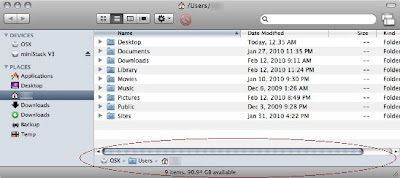
At face value, that's all the Path Bar is for novice Mac users. Nothing more than a list. Well, fellow Mac fans, there's more worth knowing.
First, you need to familiarize yourself with basic Mac keyboard and mouse actions. The Command key is your best friend. Formerly known as the Apple key, most Command keys on new Macs are branded with the funny cloverleaf pattern Command symbol and the word "command." In terms of mouse actions, there isn't anything new to learn. Double clicking and right clicking are the only two skills you'll need for this lesson.
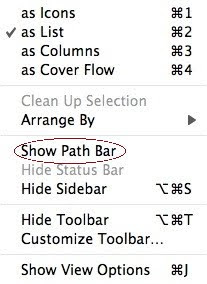
To enable the Path Bar:
In the Finder, with a folder open, select the View menu and select Show Path Bar.

Duplicate the current window:
So let's start with the first trick, but let me preface it with a quick story. An app called Clone Window was a useful tool in my repertoire, snugly positioned in my Finder window Toolbar. The purpose of the app was to open a duplicate window of the current folder. For anyone who moves files around, this approach, while somewhat more analog in nature, is much more comfortable than navigating in Column view. Well the Path Bar makes this task possible without any special add ons. What's especially useful about the Path Bar is that, unlike Clone Window, when the Toolbar is collapsed, the Path Bar hangs around.
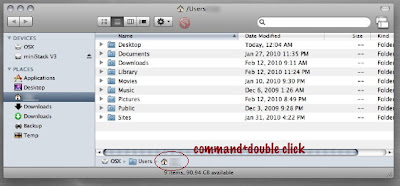
To accomplish this simple task, find the folder you'd like to have open in two windows listed in the Path Bar. Hold down the Command key. Now double click the folder icon/name in the Path Bar. Presto. Two windows of the same folder are open.
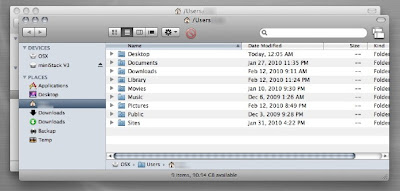
(You might notice that Clone Window is still present in my Toolbar. I haven't parted ways with the app just yet.)
Let's take this trick one step further. You can Command click on any folder in the list. That means you can open any folder in the hierarchy in a separate window.
In this regard, several other features common to navigating the Finder and managing files and folders are applicable. By holding down Command and Option followed by dragging something from the Path Bar, you can create an alias or shortcut to said item. Option clicking and then dragging allows you to copy a file or folder. Go ahead an experiment.
But it doesn't end there.
I use it to eject discs too. This trick is especially useful when I'm doing software updates, whether system related or simply for installing a series of newly released apps.
Sure, you can click on the icon on the Desktop and eject. Sure, you can do a Command E or select Eject via a menu. Yes, you can even drag the disc to the Trash icon in the Dock. But where is the fun in that?
Mount a disc image or pop in a DVD or CD.
In my case, I mounted the disc image for Formulate Pro, an app for dealing with PDF forms.
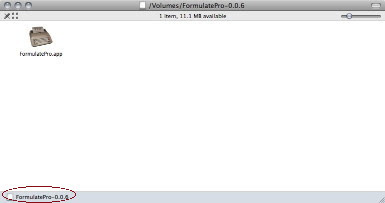
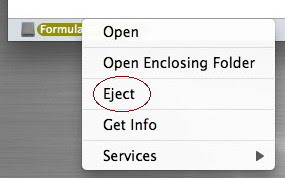
Instead of clicking on the icon on my Desktop, I can right click (control click) or use my Secondary Tap on my trackpad to bring up a contextual menu. You'll notice that in my screen shot, Eject is listed in said contextual menu. Select it and go on with your life much more efficiently.
There you have it. The Path Bar is a very useful tool for Mac users. Don't let it go to waste.

At face value, that's all the Path Bar is for novice Mac users. Nothing more than a list. Well, fellow Mac fans, there's more worth knowing.
First, you need to familiarize yourself with basic Mac keyboard and mouse actions. The Command key is your best friend. Formerly known as the Apple key, most Command keys on new Macs are branded with the funny cloverleaf pattern Command symbol and the word "command." In terms of mouse actions, there isn't anything new to learn. Double clicking and right clicking are the only two skills you'll need for this lesson.
To enable the Path Bar:
In the Finder, with a folder open, select the View menu and select Show Path Bar.


Duplicate the current window:
So let's start with the first trick, but let me preface it with a quick story. An app called Clone Window was a useful tool in my repertoire, snugly positioned in my Finder window Toolbar. The purpose of the app was to open a duplicate window of the current folder. For anyone who moves files around, this approach, while somewhat more analog in nature, is much more comfortable than navigating in Column view. Well the Path Bar makes this task possible without any special add ons. What's especially useful about the Path Bar is that, unlike Clone Window, when the Toolbar is collapsed, the Path Bar hangs around.

To accomplish this simple task, find the folder you'd like to have open in two windows listed in the Path Bar. Hold down the Command key. Now double click the folder icon/name in the Path Bar. Presto. Two windows of the same folder are open.

(You might notice that Clone Window is still present in my Toolbar. I haven't parted ways with the app just yet.)
Let's take this trick one step further. You can Command click on any folder in the list. That means you can open any folder in the hierarchy in a separate window.
In this regard, several other features common to navigating the Finder and managing files and folders are applicable. By holding down Command and Option followed by dragging something from the Path Bar, you can create an alias or shortcut to said item. Option clicking and then dragging allows you to copy a file or folder. Go ahead an experiment.
But it doesn't end there.
I use it to eject discs too. This trick is especially useful when I'm doing software updates, whether system related or simply for installing a series of newly released apps.
Sure, you can click on the icon on the Desktop and eject. Sure, you can do a Command E or select Eject via a menu. Yes, you can even drag the disc to the Trash icon in the Dock. But where is the fun in that?
Mount a disc image or pop in a DVD or CD.
In my case, I mounted the disc image for Formulate Pro, an app for dealing with PDF forms.

Instead of clicking on the icon on my Desktop, I can right click (control click) or use my Secondary Tap on my trackpad to bring up a contextual menu. You'll notice that in my screen shot, Eject is listed in said contextual menu. Select it and go on with your life much more efficiently.

There you have it. The Path Bar is a very useful tool for Mac users. Don't let it go to waste.
Sunday, November 1, 2009
Yet another iPod fix
Forgive me for using ancient technology, but over the last couple of weeks, my 40GB 4G iPod Classic has been acting up. It started with being unable to turn it off by holding down the pause button. After holding down the pause button, it would turn off, and then back on again. I bit my tongue and coped with the occasional difficulty until this week.
The symptoms became more pronounced this week. Not only would it not turn off, but the menu button didn't work right. It behaved more like the center button. Here I was in the midst of an episode of Leo Laporte's The Tech Guy podcast and I couldn't go back to the previous menus.
I discovered that I could turn the iPod off if I pressed down on the middle button and at the same time, held down on the pause button. Granted, in a split second, the iPod would turn off and back on again just as before. I knew the hold switch would prevent the iPod from responding to any input from the controls, so I cleverly repeated this step and kept another finger hovering on the hold switch to catch it as the unit turned off. That worked. Okay, time to crack 'er open.
So I went about troubleshooting the problem slowly. I already have some experience with opening up a 1st generation iPod, so I wasn't scared to pop this sucker open. Of course, opening an iPod is no simple task.
I approached from the bottom edge along the silver metal backing with a very small flathead screwdriver. Eventually, I was able to pry apart the seam and advance along to one of the corners, prying up the guts of the iPod as I went along. After about 30 minutes of trying to get that part started, I had the iPod wide open.
Everything looked okay inside. I worked my way all the way down to beneath the battery which was glued on a bit too good. I scratched my head again.
I went ahead and flipped the hold switch off and tried using the iPod without the case sealed shut. The controls worked fine. That meant something was pressing up against the back side of the controls keeping them from working properly. There was only one thing I could think of removing.
On just about every iPod hard drive, they've affixed a foam backing to cushion the drive and separate it from other parts. Yes, it's glued on. No, it's not fun trying to remove the stuff, but that's what did it. Pull that foam off and your iPod will be back to its jolly old self again.
Sorry I can't provide photos. It's a straightforward fix. Nothing is really wrong with the iPod itself, but after reading several threads and quick fix web sites, I was convinced nobody had approached this problem yet. Hopefully this post helps some poor soul who thinks their iPod needs to be repaired or replaced.
The symptoms became more pronounced this week. Not only would it not turn off, but the menu button didn't work right. It behaved more like the center button. Here I was in the midst of an episode of Leo Laporte's The Tech Guy podcast and I couldn't go back to the previous menus.
I discovered that I could turn the iPod off if I pressed down on the middle button and at the same time, held down on the pause button. Granted, in a split second, the iPod would turn off and back on again just as before. I knew the hold switch would prevent the iPod from responding to any input from the controls, so I cleverly repeated this step and kept another finger hovering on the hold switch to catch it as the unit turned off. That worked. Okay, time to crack 'er open.
So I went about troubleshooting the problem slowly. I already have some experience with opening up a 1st generation iPod, so I wasn't scared to pop this sucker open. Of course, opening an iPod is no simple task.
I approached from the bottom edge along the silver metal backing with a very small flathead screwdriver. Eventually, I was able to pry apart the seam and advance along to one of the corners, prying up the guts of the iPod as I went along. After about 30 minutes of trying to get that part started, I had the iPod wide open.
Everything looked okay inside. I worked my way all the way down to beneath the battery which was glued on a bit too good. I scratched my head again.
I went ahead and flipped the hold switch off and tried using the iPod without the case sealed shut. The controls worked fine. That meant something was pressing up against the back side of the controls keeping them from working properly. There was only one thing I could think of removing.
On just about every iPod hard drive, they've affixed a foam backing to cushion the drive and separate it from other parts. Yes, it's glued on. No, it's not fun trying to remove the stuff, but that's what did it. Pull that foam off and your iPod will be back to its jolly old self again.
Sorry I can't provide photos. It's a straightforward fix. Nothing is really wrong with the iPod itself, but after reading several threads and quick fix web sites, I was convinced nobody had approached this problem yet. Hopefully this post helps some poor soul who thinks their iPod needs to be repaired or replaced.
Thursday, January 15, 2009
Worried About Steve Jobs & Apple
Ever since Steve Jobs was diagnosed with some form of benign pancreatic cancer, questions and concerns about his health have lingered. I would like to get my hands on the pathology report. After recent appearances where he apparently looked thinner and less healthy, more speculation started flying around. Official releases from those at Apple continued to insist Steve was fine. Now Steve has announced he will go on medical leave until some time in June.
Where does this leave Apple? The stock has already taken a hit over this recent news. A similar situation occurred when an "iReporter" falsely posted a news story that Jobs had been taken off in an ambulance. What Apple is to the Macworld Expo is what Steve Jobs is to Apple in many respects. One may not succeed without the other. I can't help but express that somewhat reserved sense of irony (for those Apple fans out there aware of Apple abandoning future Macworld Expos). Combined with the the recent lackluster Macworld Keynote, this story is making many of us very worried.
Should he pass away, whoever takes over needs to share the vision Steve Jobs had. That should be a no brainer, but anyone who knows the history of Apple is aware of how various CEO's have taken the company in the wrong direction. We can't help but feel very worried about our beloved Apple. For those newcomers and perhaps for many news anchors, Steve Jobs is just the guy that brought us the iPod and the iPhone. For the rest of us who have been Mac users for ages, Steve has always been a visionary of great significance in the world of tech.
Steve, we wish you well and hope for the best.
I found this article at MSNBC to be an interesting read that helped me to understand the underlying pathology in question. Most of us are in the dark because Jobs is good at keeping secrets.
Where does this leave Apple? The stock has already taken a hit over this recent news. A similar situation occurred when an "iReporter" falsely posted a news story that Jobs had been taken off in an ambulance. What Apple is to the Macworld Expo is what Steve Jobs is to Apple in many respects. One may not succeed without the other. I can't help but express that somewhat reserved sense of irony (for those Apple fans out there aware of Apple abandoning future Macworld Expos). Combined with the the recent lackluster Macworld Keynote, this story is making many of us very worried.
Should he pass away, whoever takes over needs to share the vision Steve Jobs had. That should be a no brainer, but anyone who knows the history of Apple is aware of how various CEO's have taken the company in the wrong direction. We can't help but feel very worried about our beloved Apple. For those newcomers and perhaps for many news anchors, Steve Jobs is just the guy that brought us the iPod and the iPhone. For the rest of us who have been Mac users for ages, Steve has always been a visionary of great significance in the world of tech.
Steve, we wish you well and hope for the best.
I found this article at MSNBC to be an interesting read that helped me to understand the underlying pathology in question. Most of us are in the dark because Jobs is good at keeping secrets.
Monday, May 26, 2008
Macbook or Macbook Pro?
There was a podcast a while back that Leo Laporte participates in that discussed purchasing a Macbook with a caller. Here's the gist of the recommendation and I agree with it for the most part.
So should one get a Macbook or a MBP?
Generally speaking, get a Macbook. Here's why. You can buy one and cram 4GB of RAM in it as well as a 250GB HD and have a machine that is just as functional and powerful as a MBP. Plus it comes in a more durable case. The MBP has a metallic case that may scratch, dent, and ding easier than the Macbook enclosure. Now, there are a few points in favor of the MBP. The screen size is considerably larger. The Macbook has about a 13 inch screen and the MBP comes in 15 and 17, so you get more real estate. The MBP also has a better graphics card. The MBP also has a 300GB HD as an option. There are some other differences with regards to ports availble on each, but the overall picture for the average user is the same.
Like any computer, it all depends on what you want to do with it.
So should one get a Macbook or a MBP?
Generally speaking, get a Macbook. Here's why. You can buy one and cram 4GB of RAM in it as well as a 250GB HD and have a machine that is just as functional and powerful as a MBP. Plus it comes in a more durable case. The MBP has a metallic case that may scratch, dent, and ding easier than the Macbook enclosure. Now, there are a few points in favor of the MBP. The screen size is considerably larger. The Macbook has about a 13 inch screen and the MBP comes in 15 and 17, so you get more real estate. The MBP also has a better graphics card. The MBP also has a 300GB HD as an option. There are some other differences with regards to ports availble on each, but the overall picture for the average user is the same.
Like any computer, it all depends on what you want to do with it.
Wednesday, January 30, 2008
• On the Macbook Air
As a long time Mac user, I've found that critics of many of the newer products simply weren't in the target audience to begin with. Of course if you weren't the target, you're not going to like it. However, to sum this laptop up as just a flashy gadget would be just as misplaced as some of the criticisms and I find those people know very little about the actual Apple product line. Want an optical drive? Want the ethernet port? Want firewire? Need more screen real estate? Get a Macbook or Macbook Pro.
This new laptop is no desktop replacement by a long shot. If you're an on the go user in search of something light that didn't take a significant processor hit, get a shrunken keyboard, or reduced screen size as many other ultralight portables have in the past, then take a look at the Air. There has been a screaming demand for an ultra light mac portable for a while now in certain circles. If you didn't need one before, you likely won't want want now.
I quickly glanced at the photos and just to show my attention to detail, I'll point out I was pleasantly surprised that they went out of their way to squeeze in not one, but two command keys, a mistake they made on the original Powerbooks. The multitouch trackpad is quite fascinating. If you really really needed ethernet, there is a $29 USB adapter. My only major complaint is that the battery is built in. Other than that, I think Steve-o made a lot of good decisions. I'm still left wondering what came of the "docking" patent design shaped like a shelled out iMac stand the rumor sites were discussing.
This new laptop is no desktop replacement by a long shot. If you're an on the go user in search of something light that didn't take a significant processor hit, get a shrunken keyboard, or reduced screen size as many other ultralight portables have in the past, then take a look at the Air. There has been a screaming demand for an ultra light mac portable for a while now in certain circles. If you didn't need one before, you likely won't want want now.
I quickly glanced at the photos and just to show my attention to detail, I'll point out I was pleasantly surprised that they went out of their way to squeeze in not one, but two command keys, a mistake they made on the original Powerbooks. The multitouch trackpad is quite fascinating. If you really really needed ethernet, there is a $29 USB adapter. My only major complaint is that the battery is built in. Other than that, I think Steve-o made a lot of good decisions. I'm still left wondering what came of the "docking" patent design shaped like a shelled out iMac stand the rumor sites were discussing.
Subscribe to:
Posts (Atom)